Paid product · Windows laptop · Android tablets or iPads
Where is the train,
and why has it stopped?
Every plant that runs tugger trains asks it a dozen times a shift. A line is waiting for parts, the train left the warehouse ten minutes ago, and the only way to find out where it is, is to walk out and look or to call a driver who is busy driving.
The Train Tracker puts every train on your own floor plan, live. It does it without GPS or anything wired into the building: printed signs on the floor or the shelves, an ordinary tablet on each train reading them with its camera, Android or iPad, and one laptop in the office running the lot.
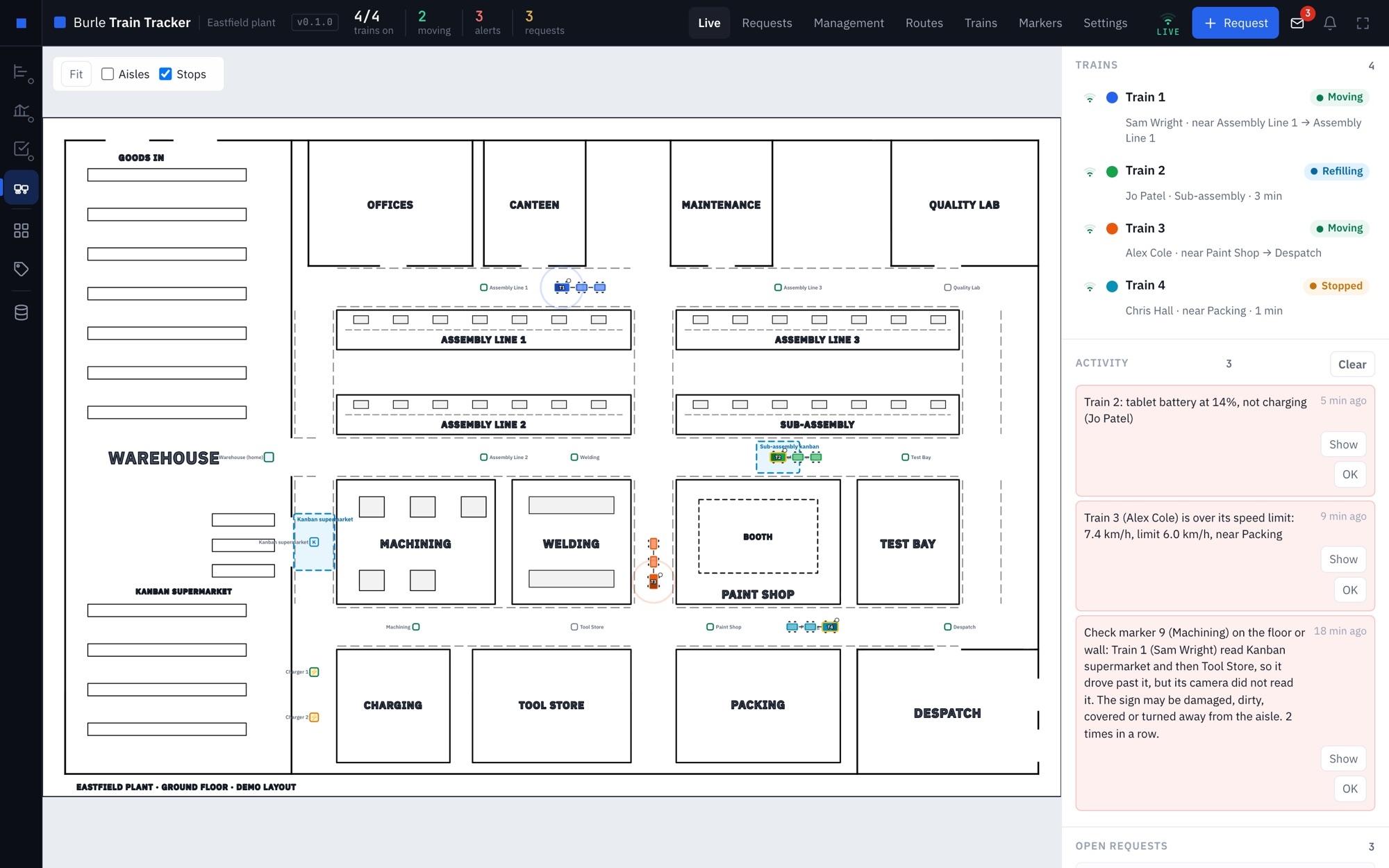
The desk
Every train, on your floor plan
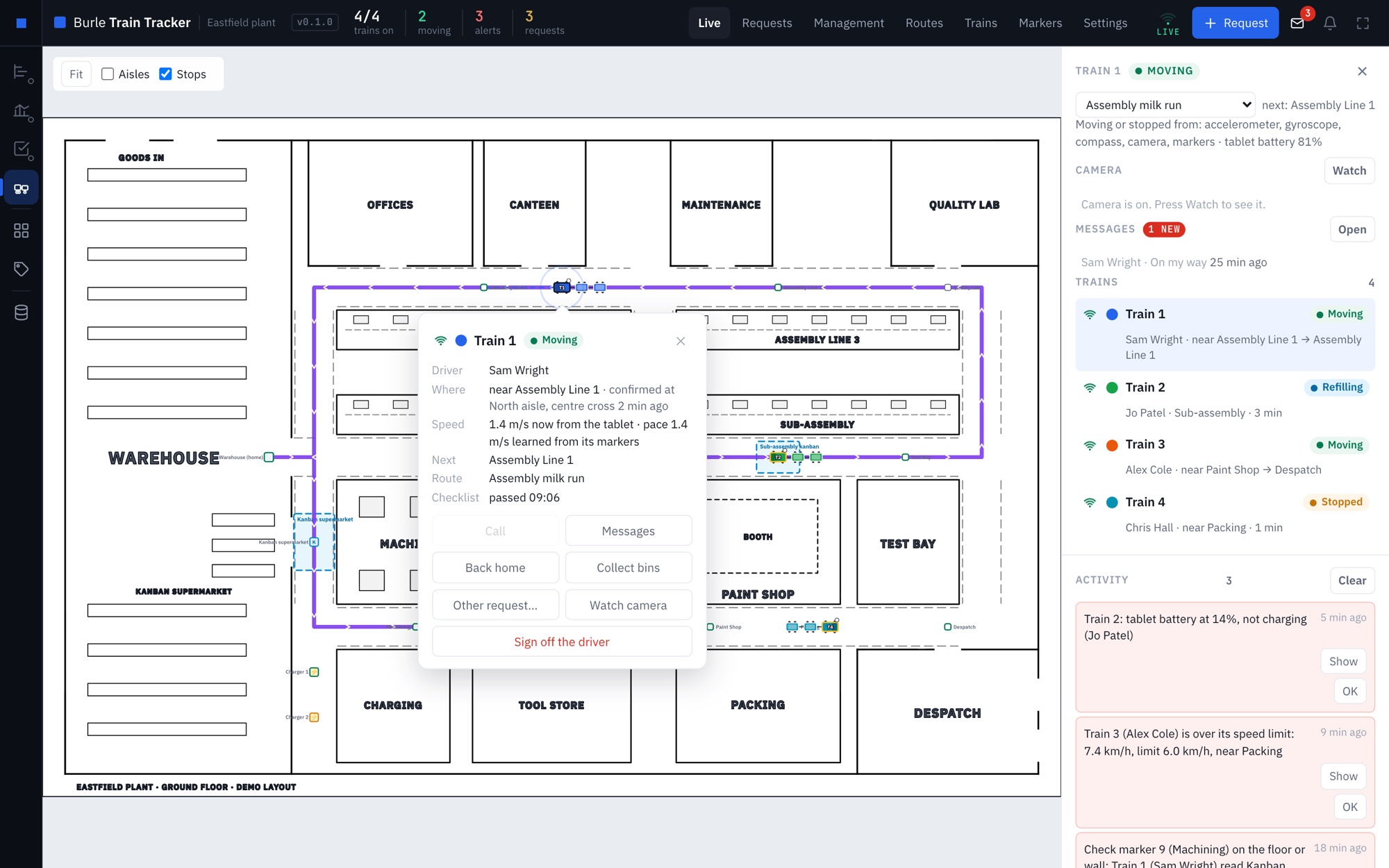
Upload the floor plan you already have, or draw one in the tracker. Draw the aisles over it once, and the trains appear on it as they move: a tractor and its carriages in their own colour, following the aisles round the corners. Click one for its driver, its route, its next stop and when it last confirmed where it is.
- Alerts worth reading. A train that has not moved for ten minutes, one off its route, reversing or over its speed limit, and a tablet whose battery is going. A sign driven past without being read is flagged too, because a damaged sign is the first thing that goes wrong.
- Requests and messages. Send a train home or to collect bins from its balloon. The driver accepts on the tablet, and the job only counts as done once the camera has read the sign at that place.
- Kanban refill stops are kept apart from waiting. Time a train stands at a refill point is its own column in the report, not stopped time, and it raises no alert.
- A wall screen. One button puts the desk full screen for a television in the office, with every menu still there.
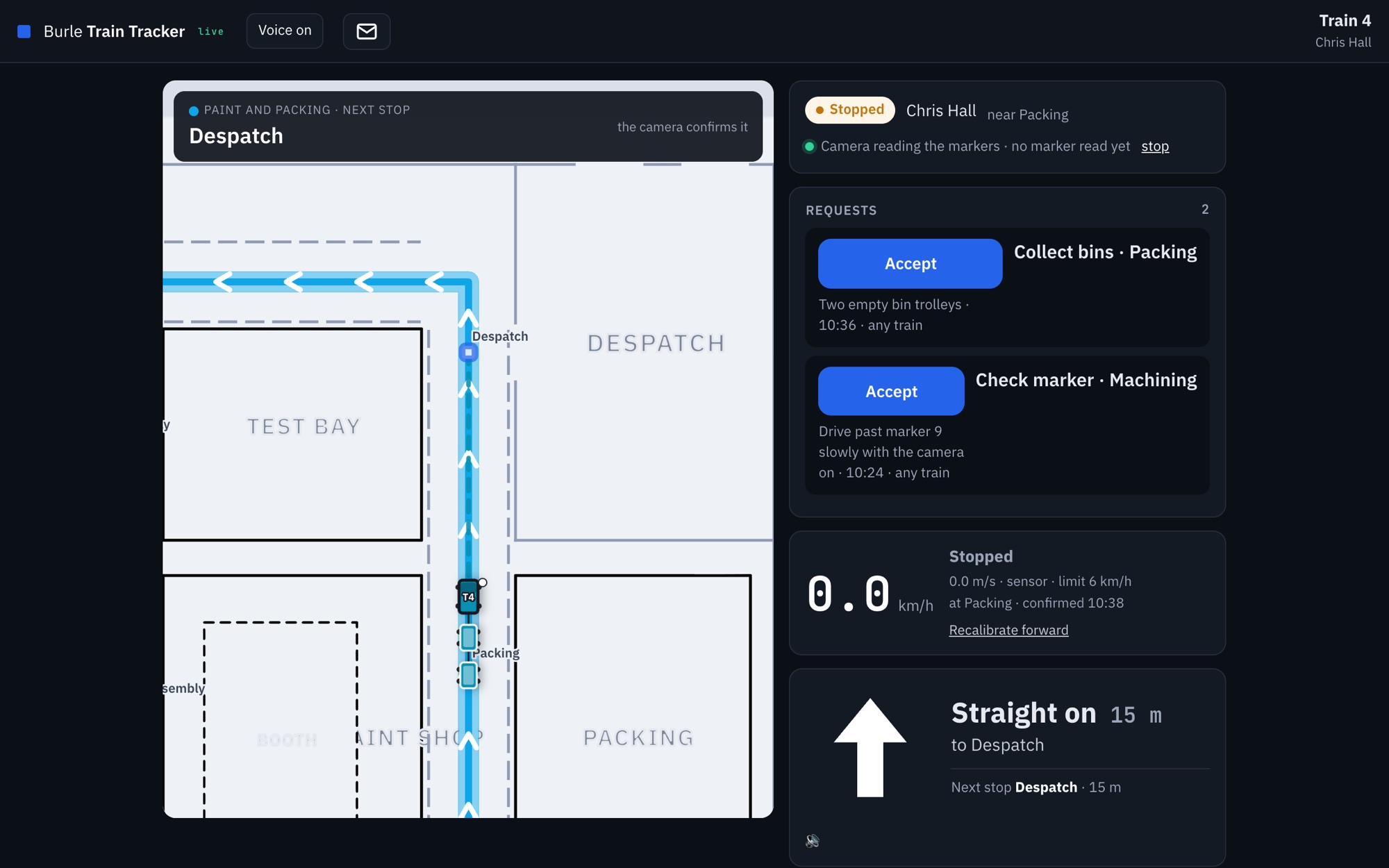
On the train
A tablet, and a web page
The driver has an ordinary tablet on a mount, Android or iPad, opening a page from the laptop over the works WiFi. There is nothing to install on it and nothing to manage. On an iPad, the first tap on the page asks for the motion sensors, once.
- The check comes first. Pick the train, pick your name, answer the pre-use checklist. A "No" stops the train and tells the desk.
- The camera reads the signs as the train passes and puts it where it is. In between, the tablet's own sensors tell moving from stopped, and the tracker carries the train along the aisle at the pace it has learned for that aisle, that train and that driver. It learns from every lap, says how sure it is, and a sign never makes the train jump on the map.
- It talks the driver round. A map that turns with the train, an arrow and a voice for the turns and the stops, a reminder to check for replenishments at each stop on the route, and a warning when the camera is off or the train is going too fast.
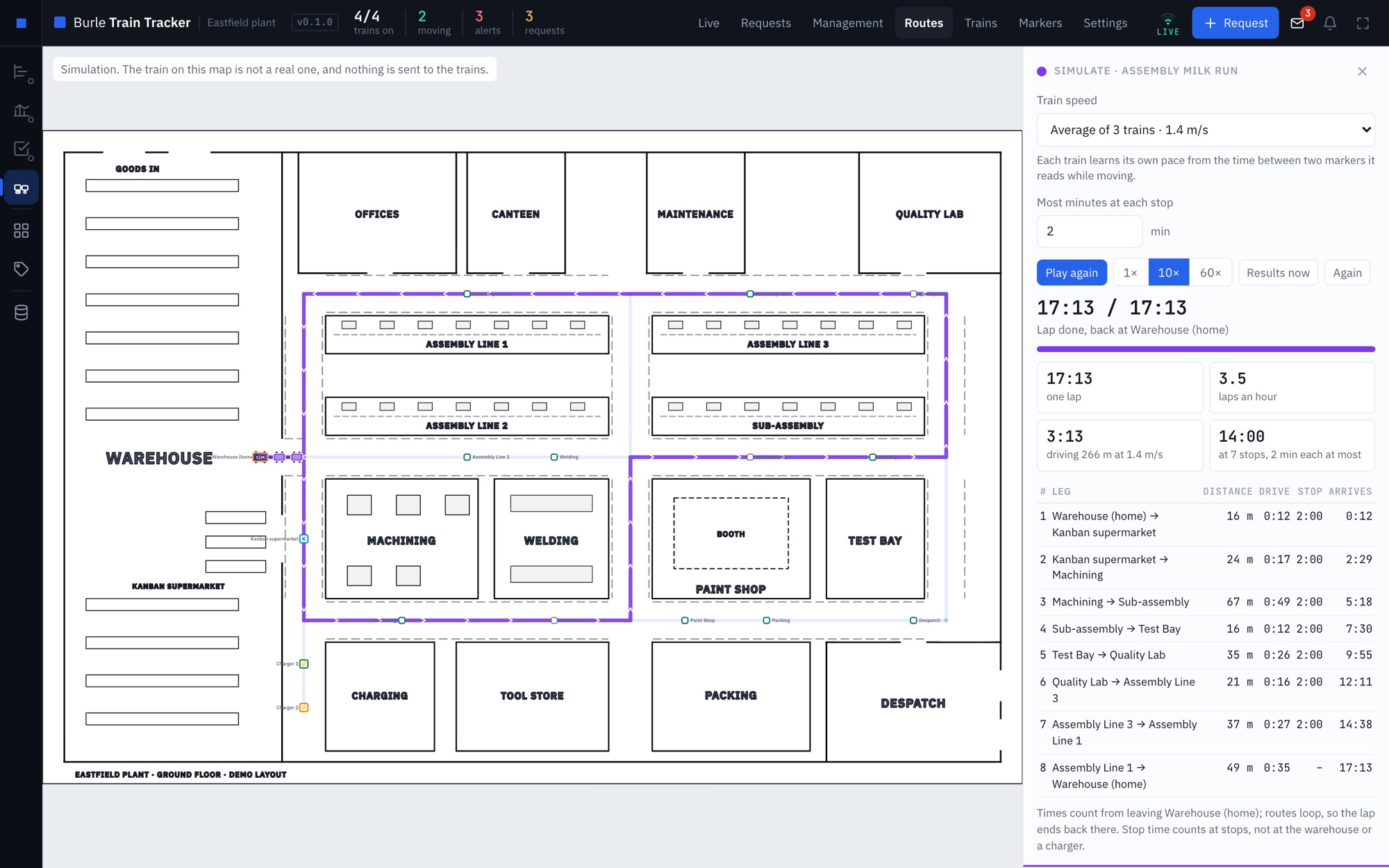
Before a train moves
Routes, timed before anyone drives them
Build a route by clicking its stops in order. The tracker plans the way round the aisles the way a tugger actually drives it, with no U-turns except where there is room to swing the carriages.
- Simulate a lap at the pace your trains have learned, leg by leg where they have driven it, with the minutes you allow at each stop, and see the lap time and how many laps an hour it gives, leg by leg.
- Change the minutes and the answer changes straight away, so the conversation about how long a stop should take has a number in it.
The numbers
Where the shift went
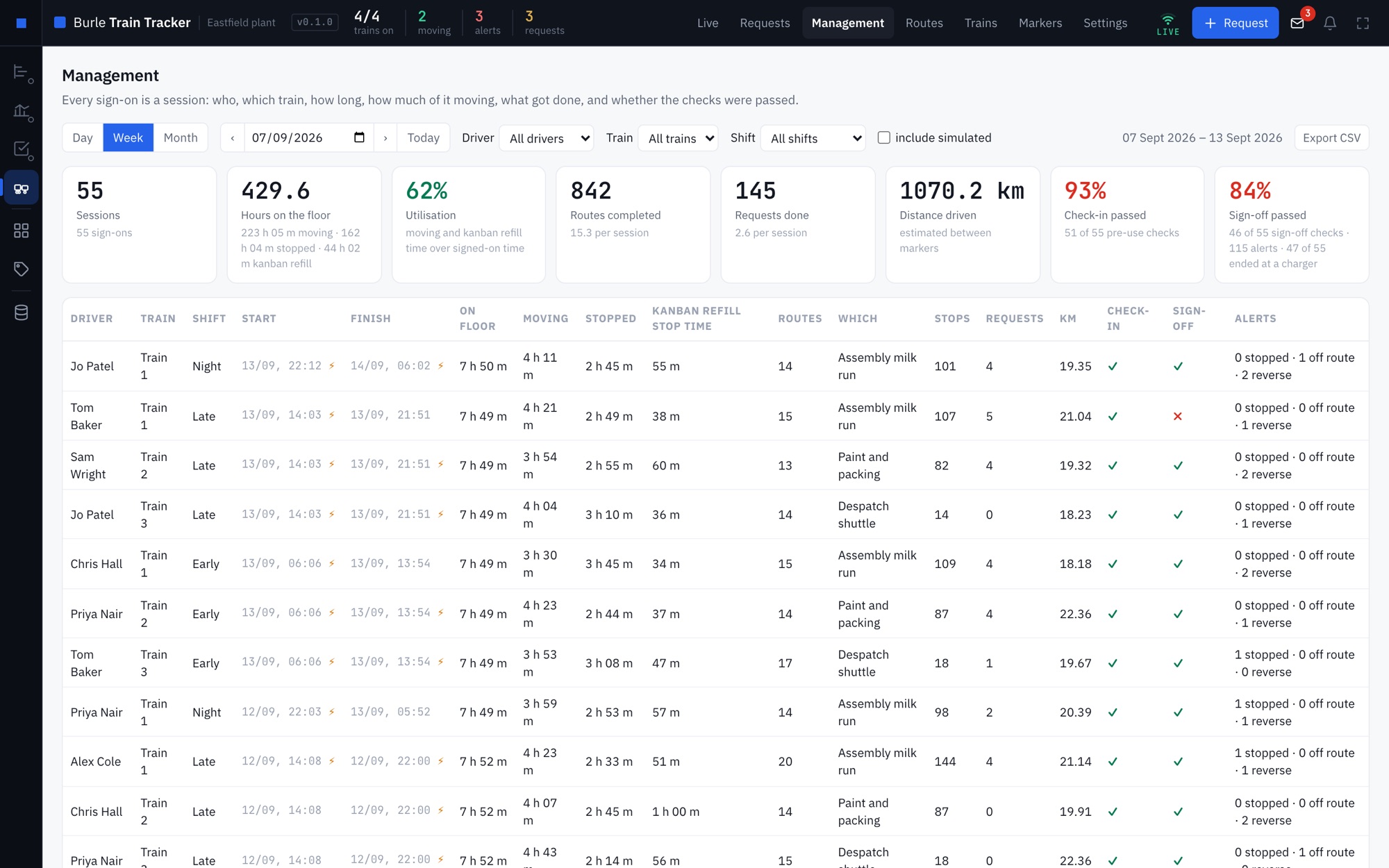
Every sign-on is a session: who, which train, how long, how much of it moving, stopped or at a kanban refill point, how many laps and requests, and whether the checks were passed. By day, week or month, for a driver, a train or a shift, and out to Excel.
Setting it up
Signs, one calibration, and a survey drive
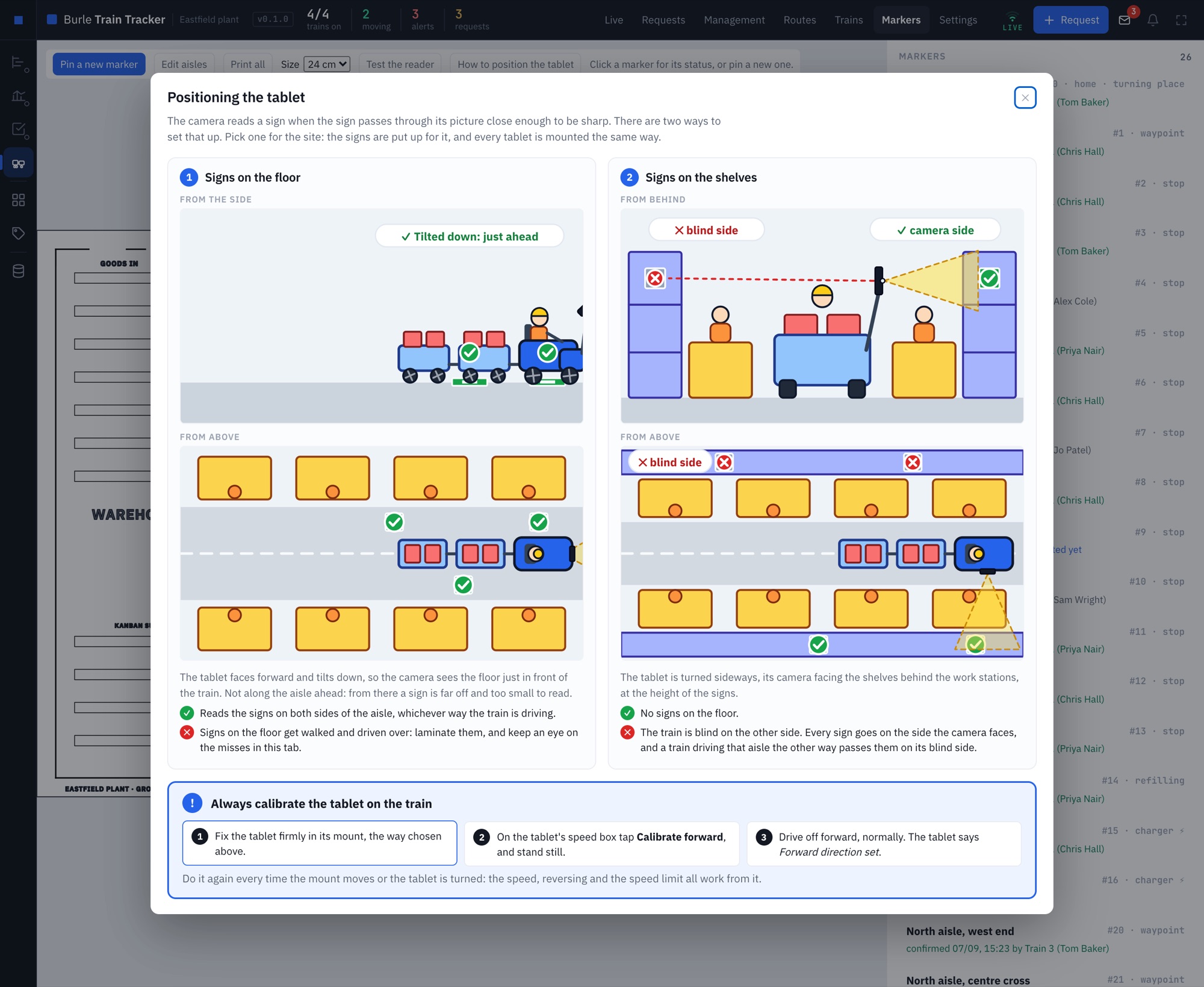
The signs print from the tracker on an office printer. There are two ways to put them up and the tracker shows both: on the floor, with the tablet tilted down so it reads both sides of the aisle, or on the shelves behind the work stations, with the tablet turned sideways. Either way, the tablet is calibrated on the train once it is mounted.
Then one train drives a survey. The tracker plans a lap that covers every aisle, and the tablet talks the driver round it. Afterwards it draws three maps over the plan: where a sign is within the camera's reach, where the tablet's own sensors carry the train well between signs, and where beacons are heard if you use them. It lists where a new sign would help most, biggest gap first, and every sign that was driven past and not read.
- No drawing of the building? Draw one in the tracker, over a photo of the paper plan on the office wall: walls that snap square, room names and exits. It goes in use like an uploaded plan, and it opens again when the layout changes.
- Beacons, where a sign can't go. A doorway lorries drive through, or the yard. On Android tablets the tracker's own app also listens for Bluetooth beacons, and a spot on the map can have a sign, a beacon or both. They are optional: a site without them loses nothing.
What IT usually asks
One Windows laptop or PC on the site network runs the tracker. It is a single file with no installer. The desk is a page on that machine, and any other PC on the network can open it. The tablets open their page from it over the works WiFi. An Android tablet can run the tracker's own app instead, served by the same laptop. It is only needed for beacons.
Yes, one, on the local network, because the tablets have to reach it. It needs no internet connection and nothing is exposed outside the site. The tablet camera needs a secure address, so the laptop makes its own certificate the first time it runs. An iPad is told to trust it once, from a page the tracker serves.
No. It looks for signs in the picture and lets the picture go. The desk can watch a train's camera live, and nothing is saved.
Nowhere off site. The floor plan, the routes and the shift log are one file on that laptop. There is no telemetry and no account.
How it is sold
This is a paid product, fitted to your plant: your floor plan, your aisles, your routes and your trains. It is a fixed price agreed before any work starts, and it is yours to run on your own site, with no per-train licence and nothing that expires.
If you want to see it move first, ask and I will walk you through it on a call with the made-up plant on this page.
Get in touch
How many trains,
and how many stops?
Send me the floor plan and the routes you run today, and I will tell you honestly what it would take.
rodrigo@burlesystems.co.uk